
Exam Day User Guide - American Boat & Yacht Council (ABYC)
Login
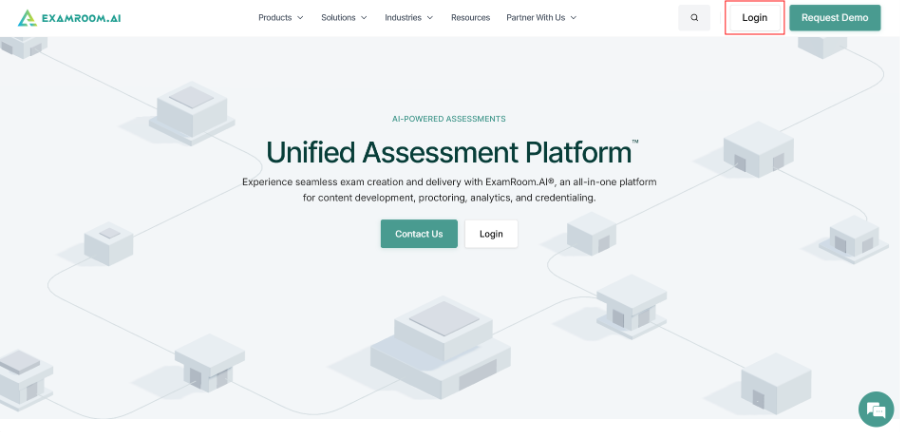
- Visit app.examroom.ai to log in to the candidate console. You can also go to examroom.ai and click Login in the top-right corner of the page.
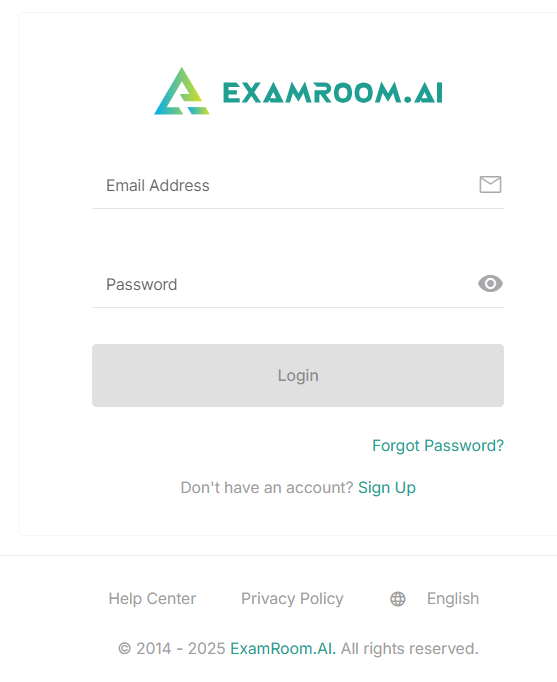
- If you already have an account, please enter your credentials (provided to you via email) and click Login.
Start Exam
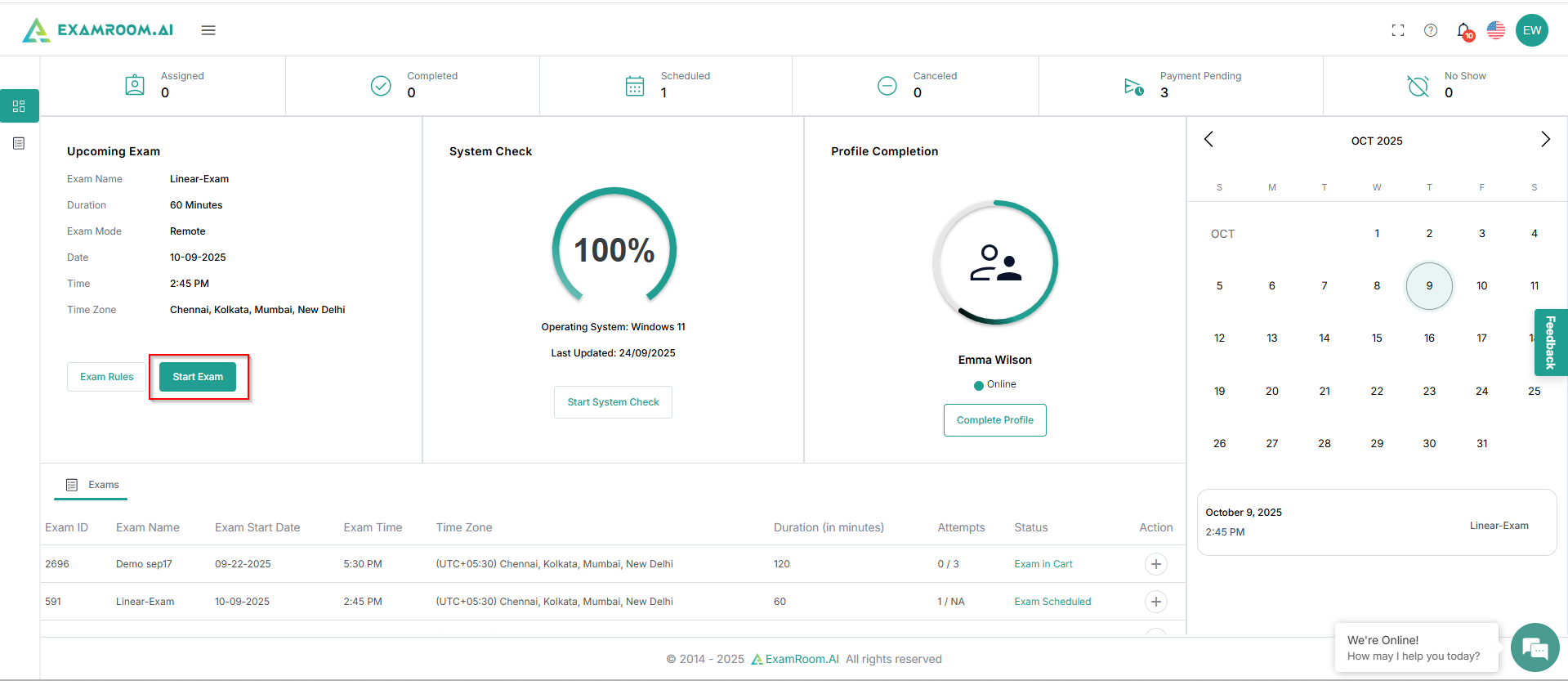
- On the Candidate Dashboard, under the Upcoming Exam section, click Start Exam.
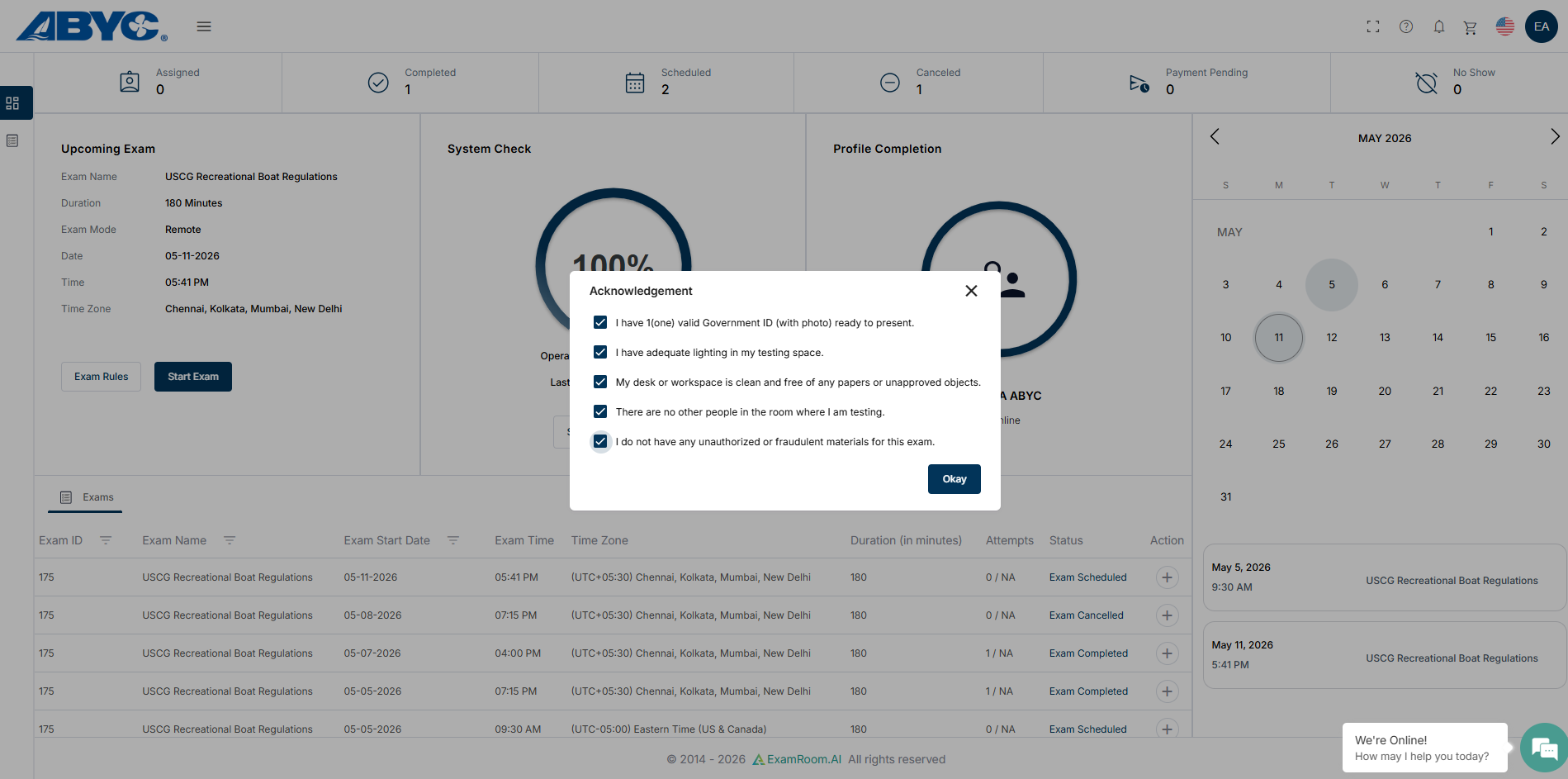
Note: The start exam button will be enabled only 15 minutes before the scheduled time. - Review the Acknowledgement and click Okay to proceed.
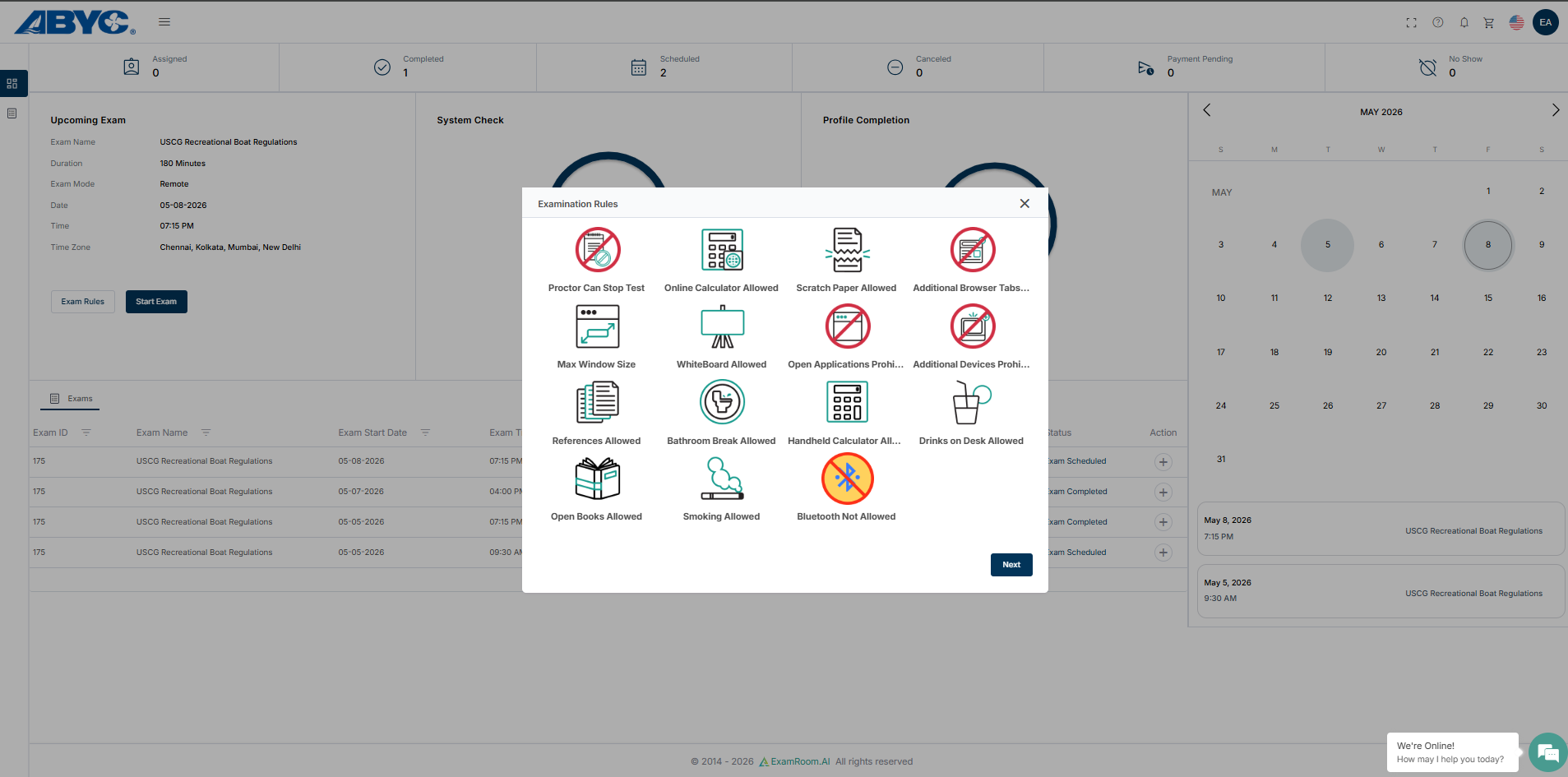
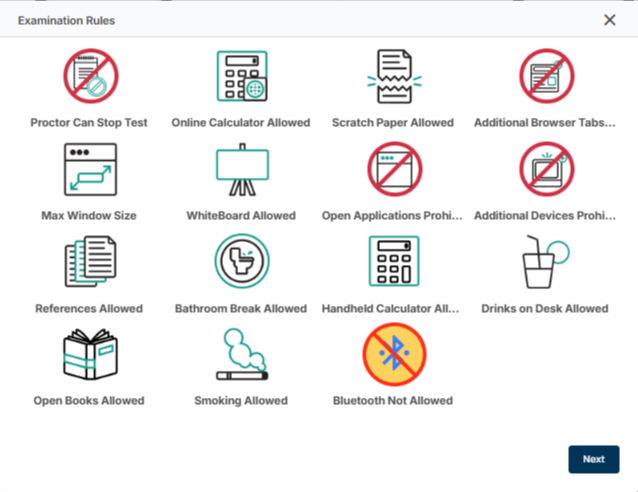
- After acknowledgement, the Examination Rules appear. Review and click Next to proceed.
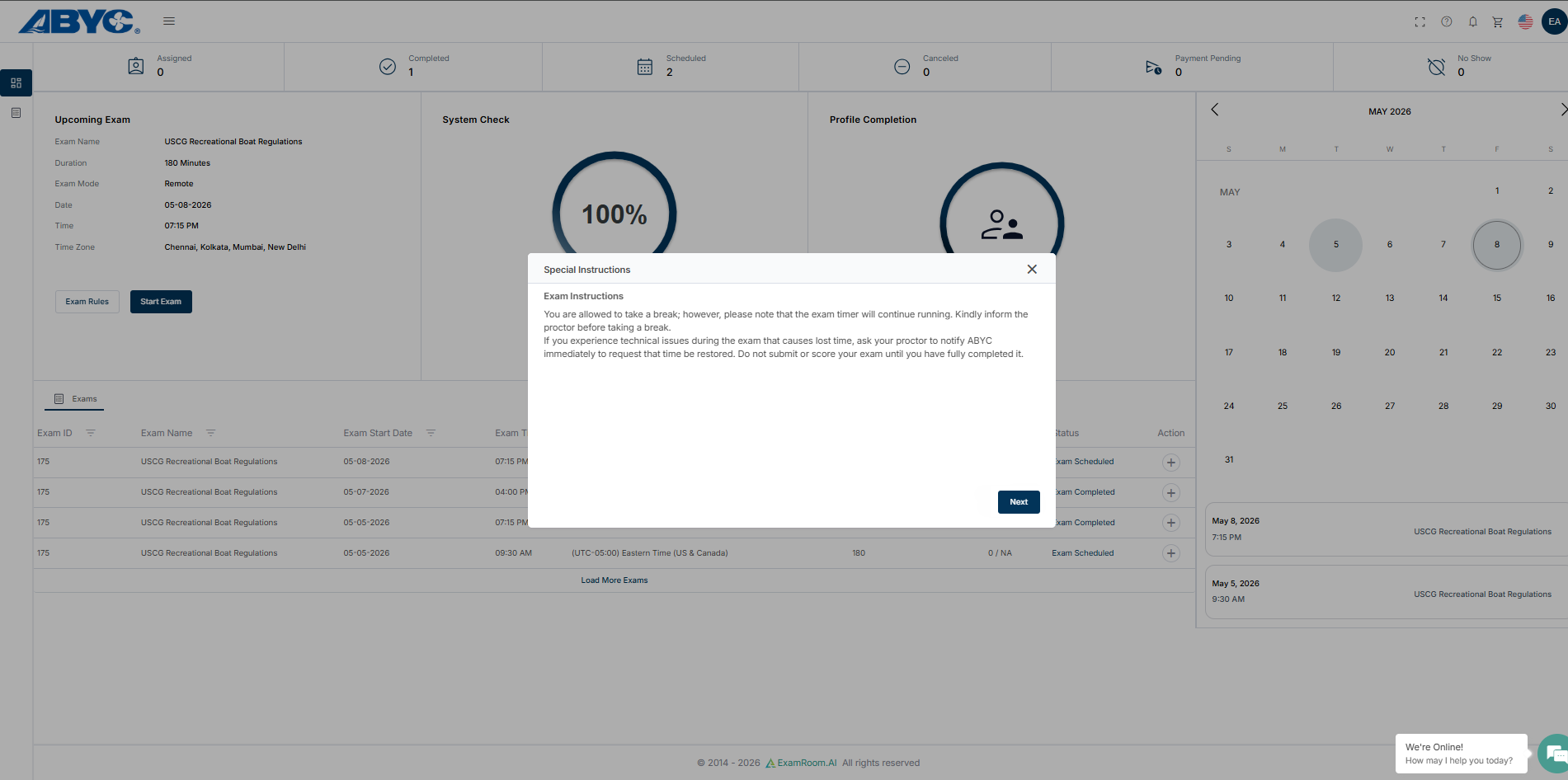
- Read the Special Instructions and click Next to continue.
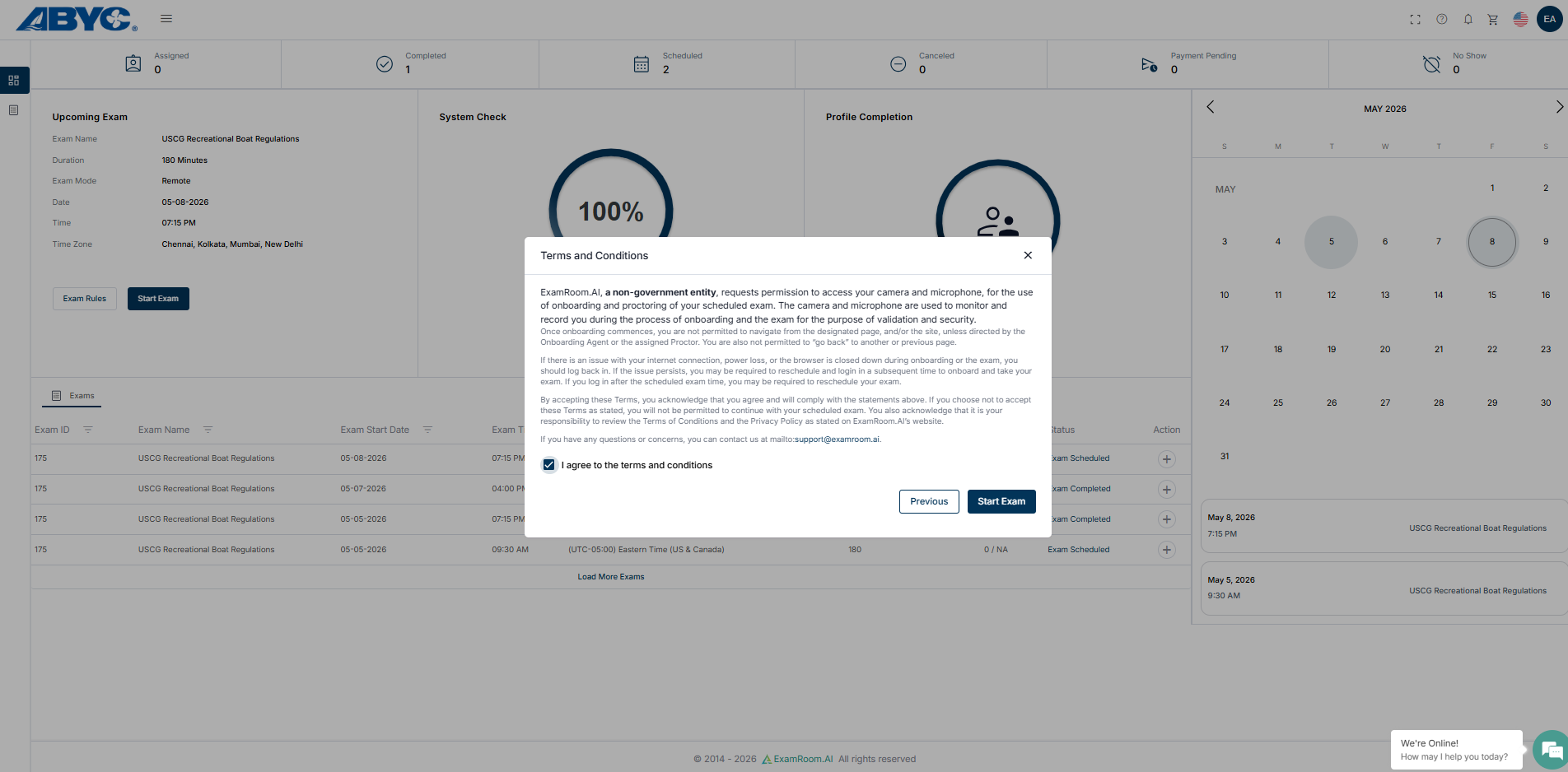
- Review the Terms and Conditions. After reading, select the checkbox to agree to the Terms and Conditions. Then, click Start Exam to begin.
System Check
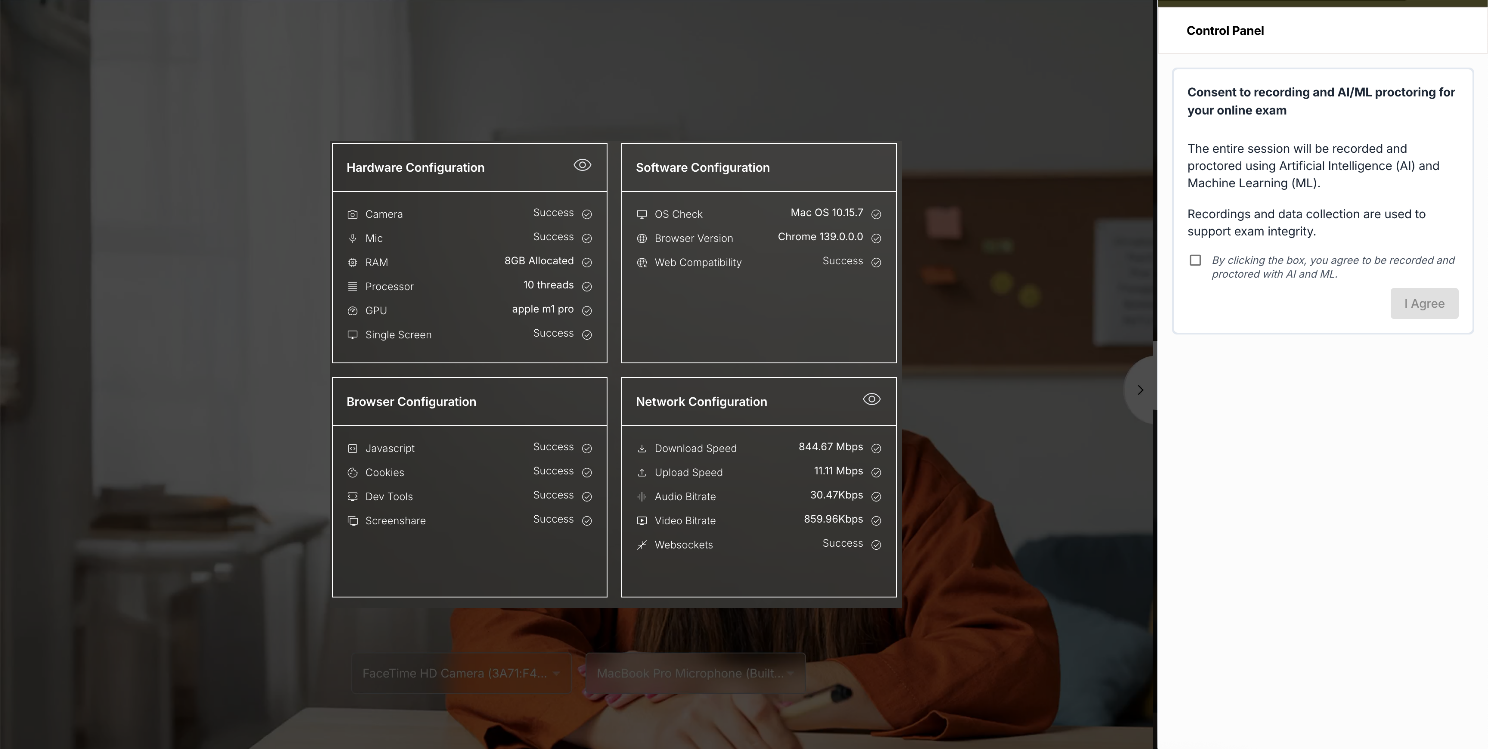
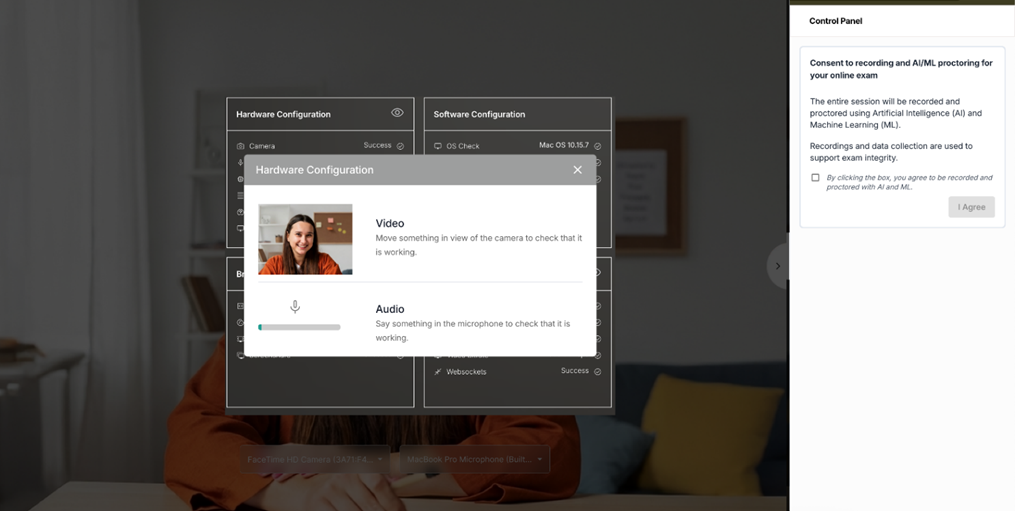
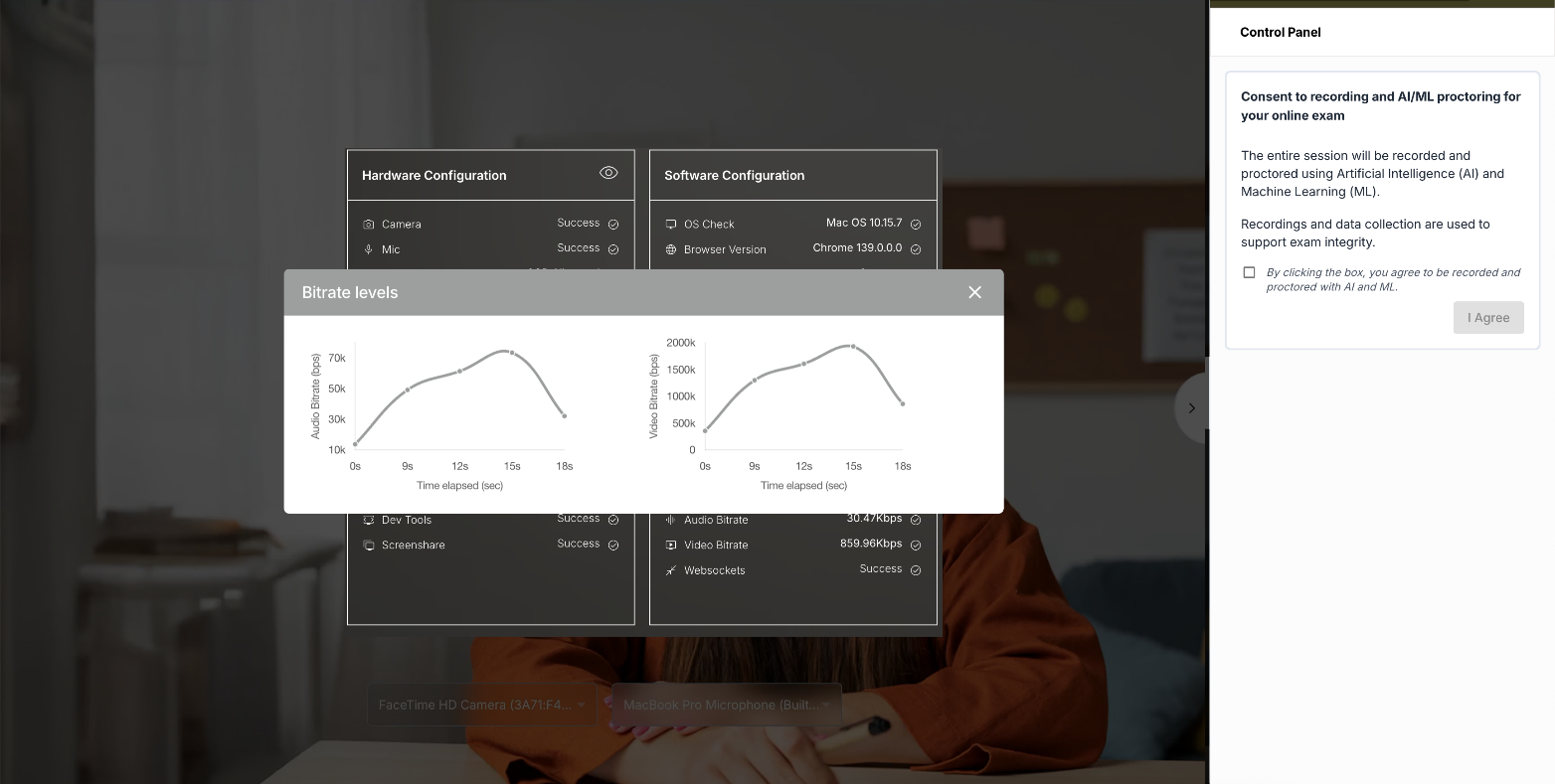
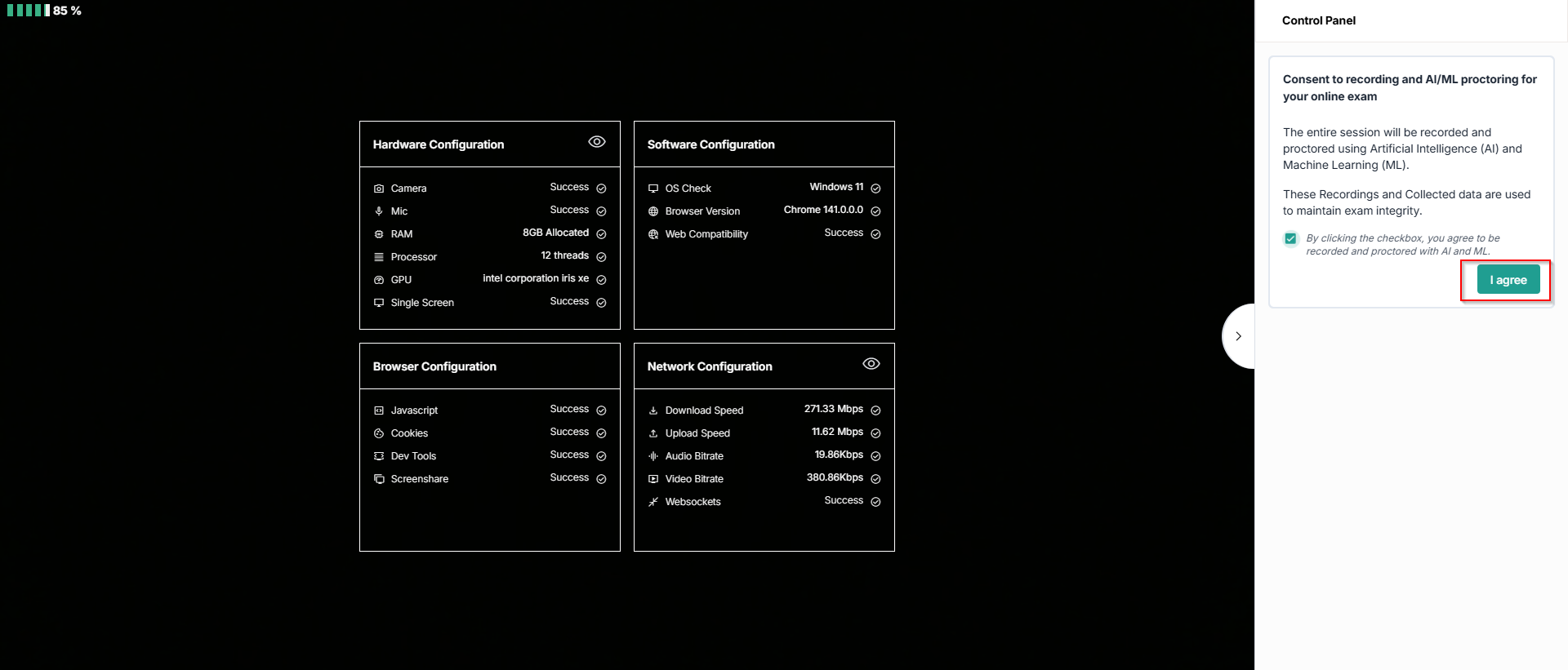
- After clicking Start Exam, a system check will run before proceeding. The screen displays the hardware, software, browser, and network system configurations. Please click System Check to view the detailed process. You can also check these links for camera and microphone permissions: Chrome Permissions, Edge Permissions, and Firefox Permissions.
- Click the View icon next to the Hardware Configuration heading. The system displays the camera and audio status. You may follow the on-screen instructions to verify these configurations.
- Click the View icon next to the Network Configuration heading to view the audio and video bitrate levels.
- Now, in the control panel, select the checkbox and click I Agree to provide consent for recording and AI/ML proctoring.
Onboarding
Sharing your Screen
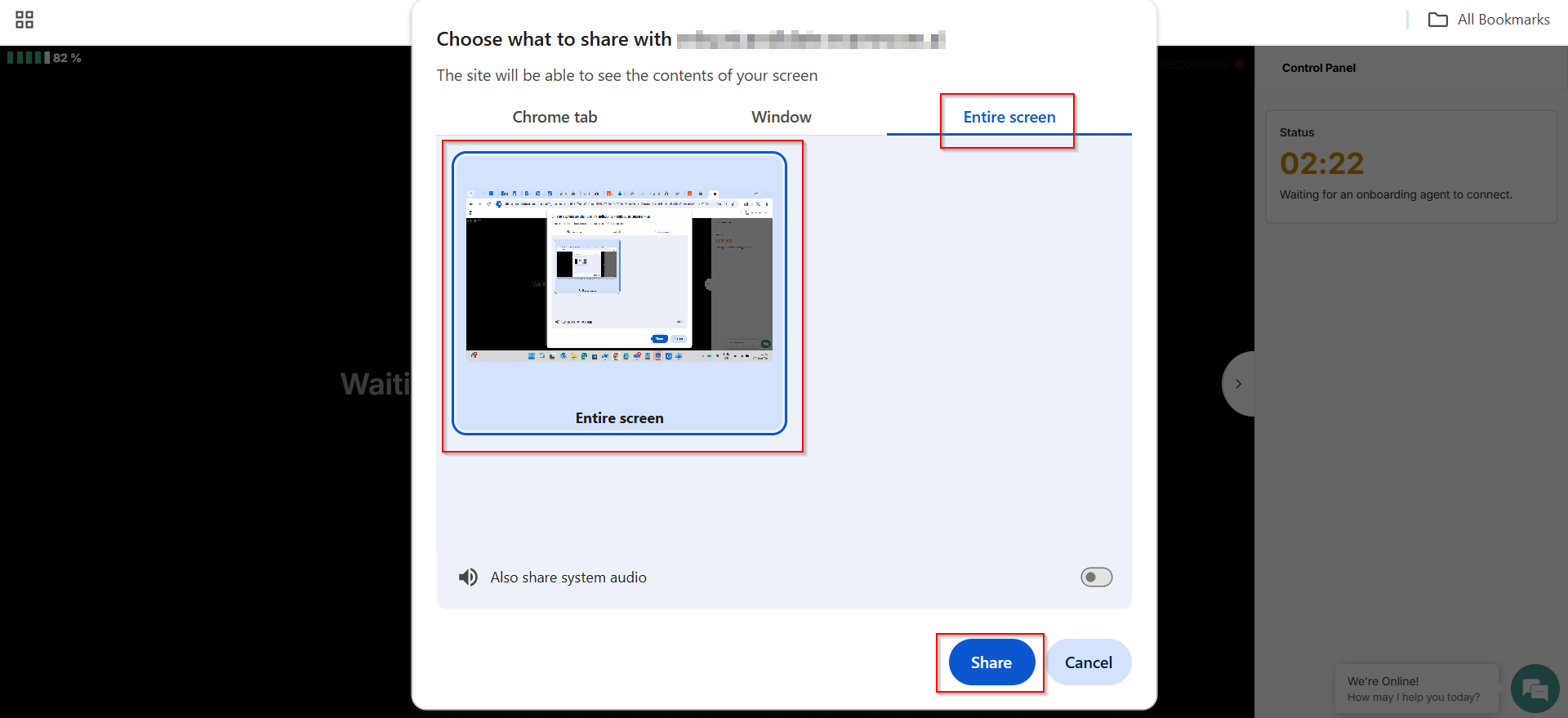
- By clicking I agree, a pop-up appears for the screen share. Select the Entire Screen option, click the Entire Screen Preview in the center of the screen, and click Share.
- The status in the control panel shows waiting for the onboarding agent, and once OBA is connected, you will be able to see them in the control panel.
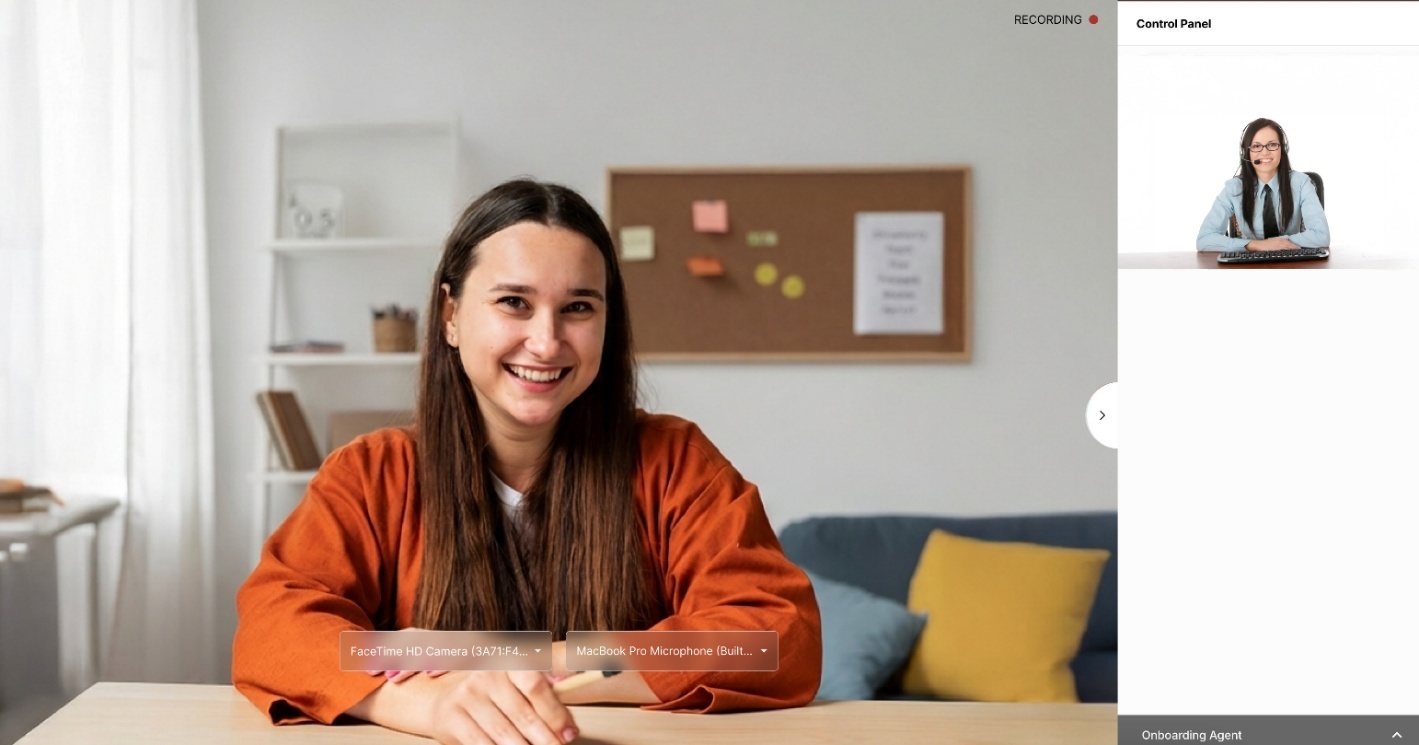
ID Verification
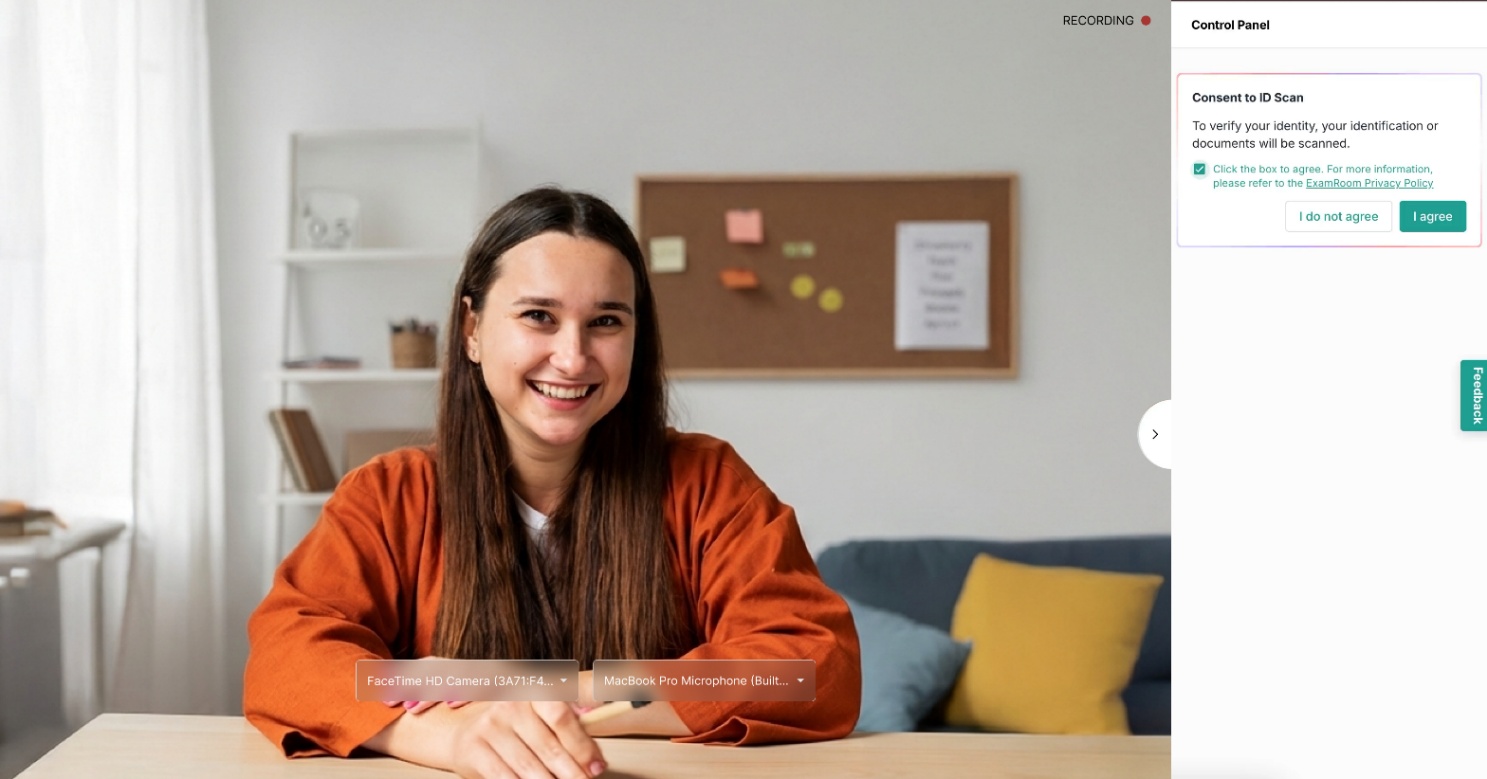
- To start the ID verification steps, A consent message will be displayed in the control panel to provide consent for the ID verification.
- Select the checkbox and click I agree to provide consent for verifying your ID.
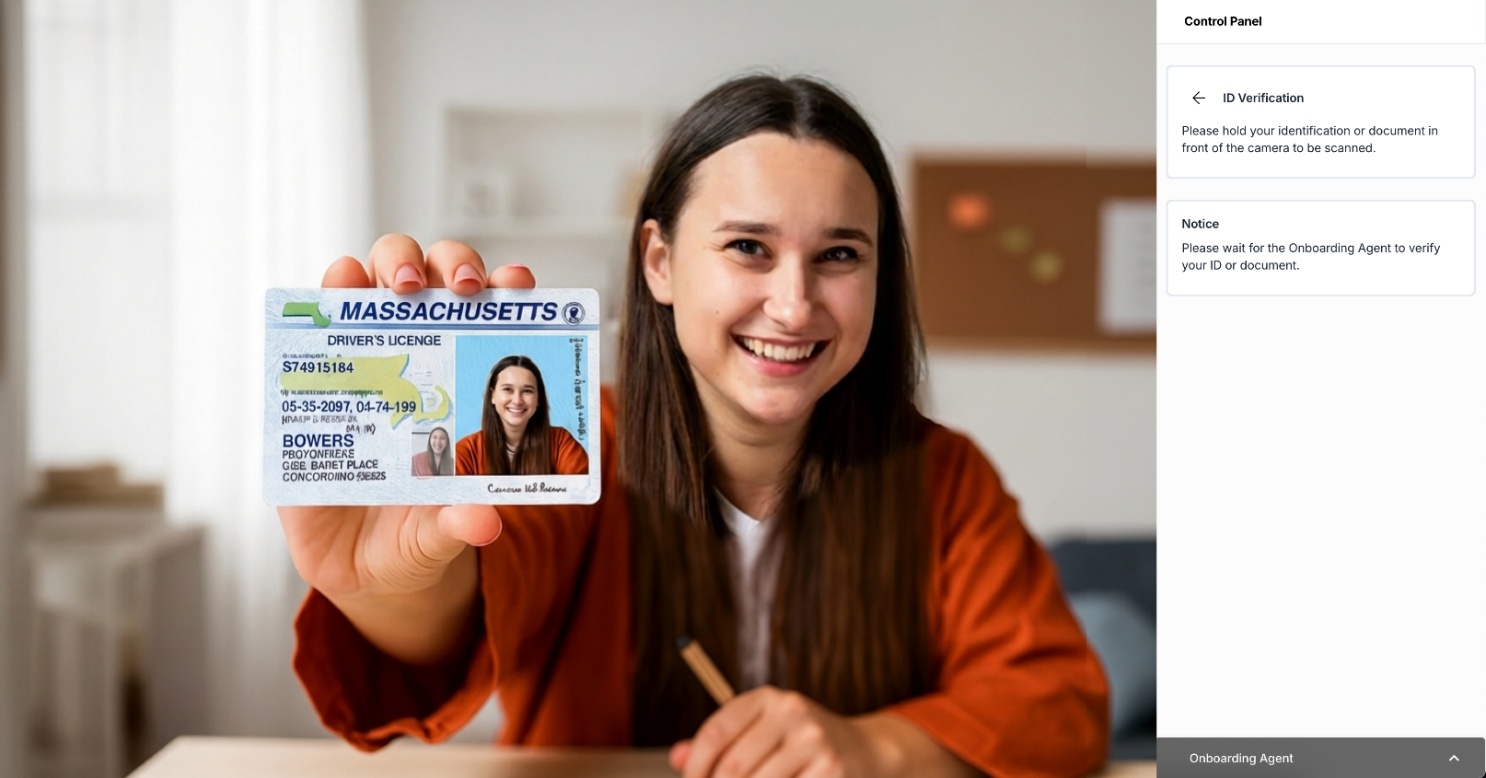
- Your ID verification has started. Hold your photo ID in front of the camera and wait until the OBA verifies it.
Face Verification
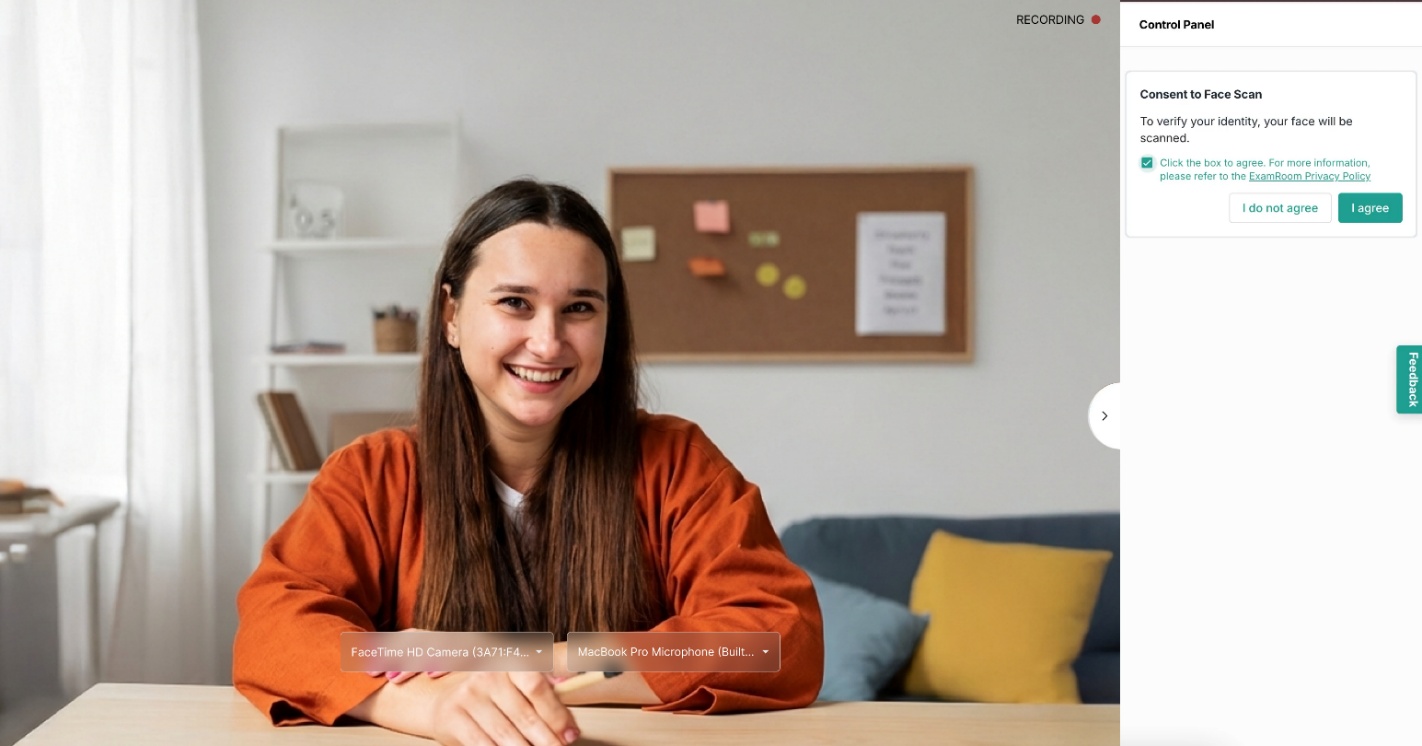
- To begin the face verification steps, a consent message will be displayed in the control panel to provide consent for the face verification.
- Select the checkbox and click I agree to provide consent for your face verification.
- As directed by the OBA, look directly into the camera while a photo of your face is taken.
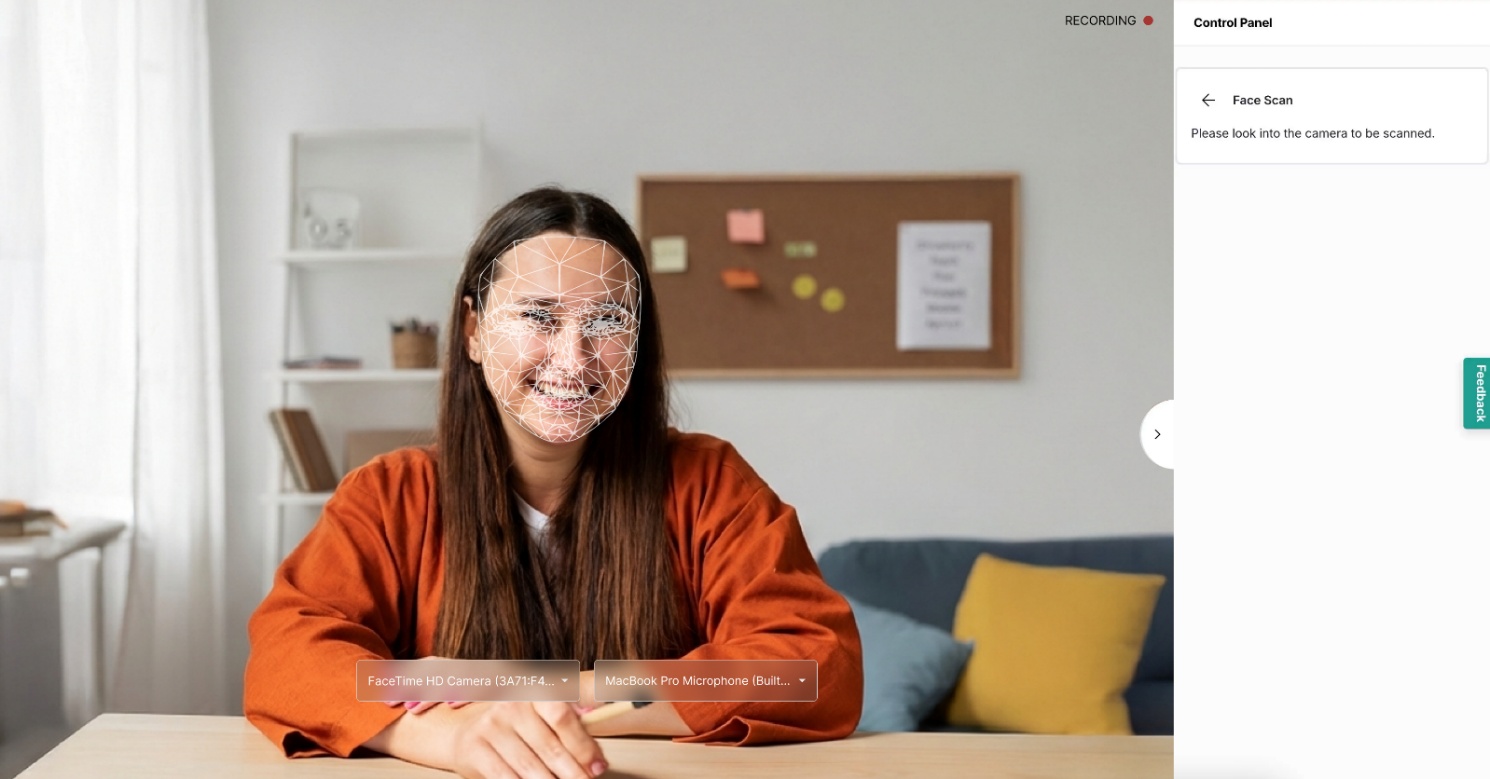
Room Scan
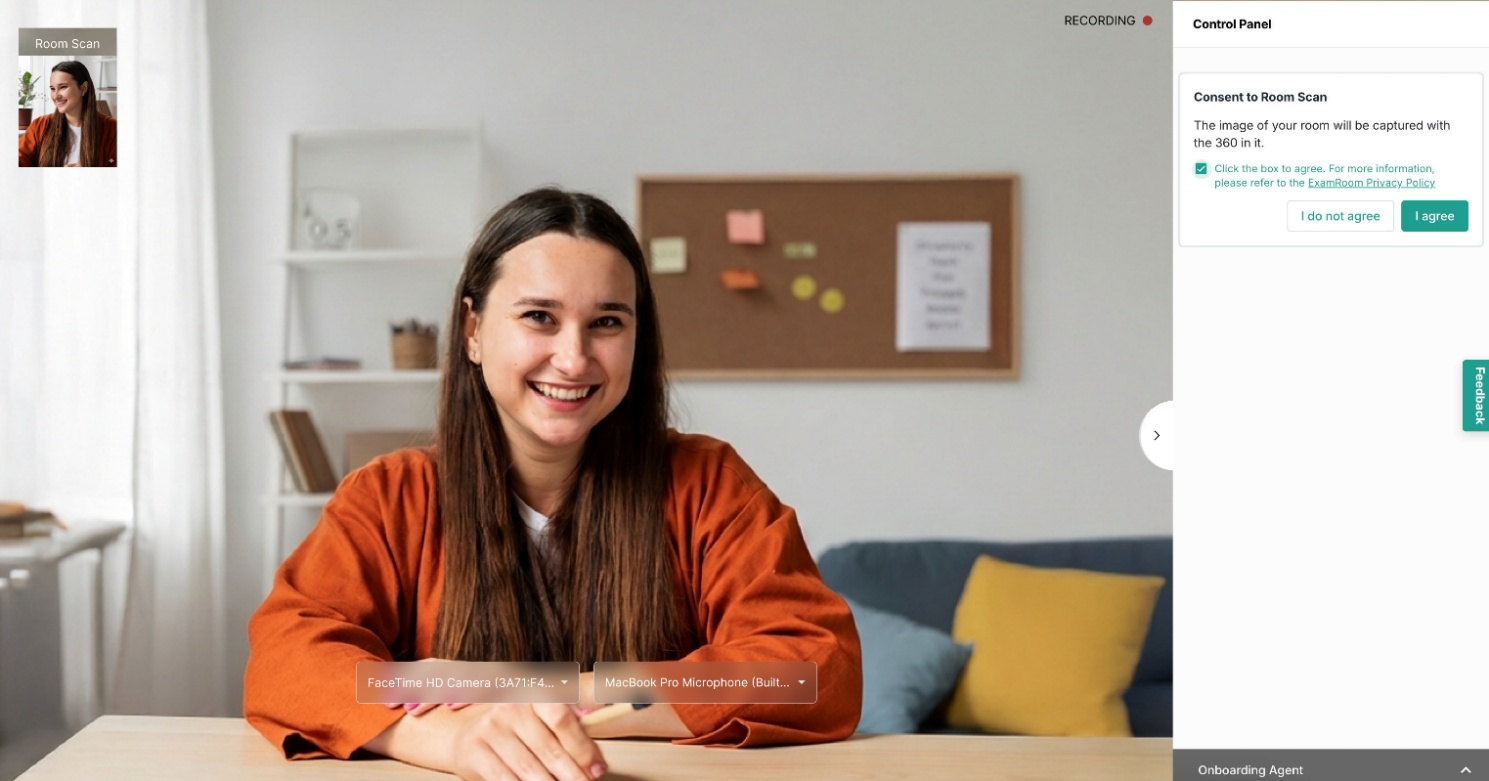
- To begin the process of Room Scan, select the checkbox and click I agree to provide consent for a room scan.
- Follow the room scan procedure as directed by the onboarding agent to show your entire testing area before proceeding.
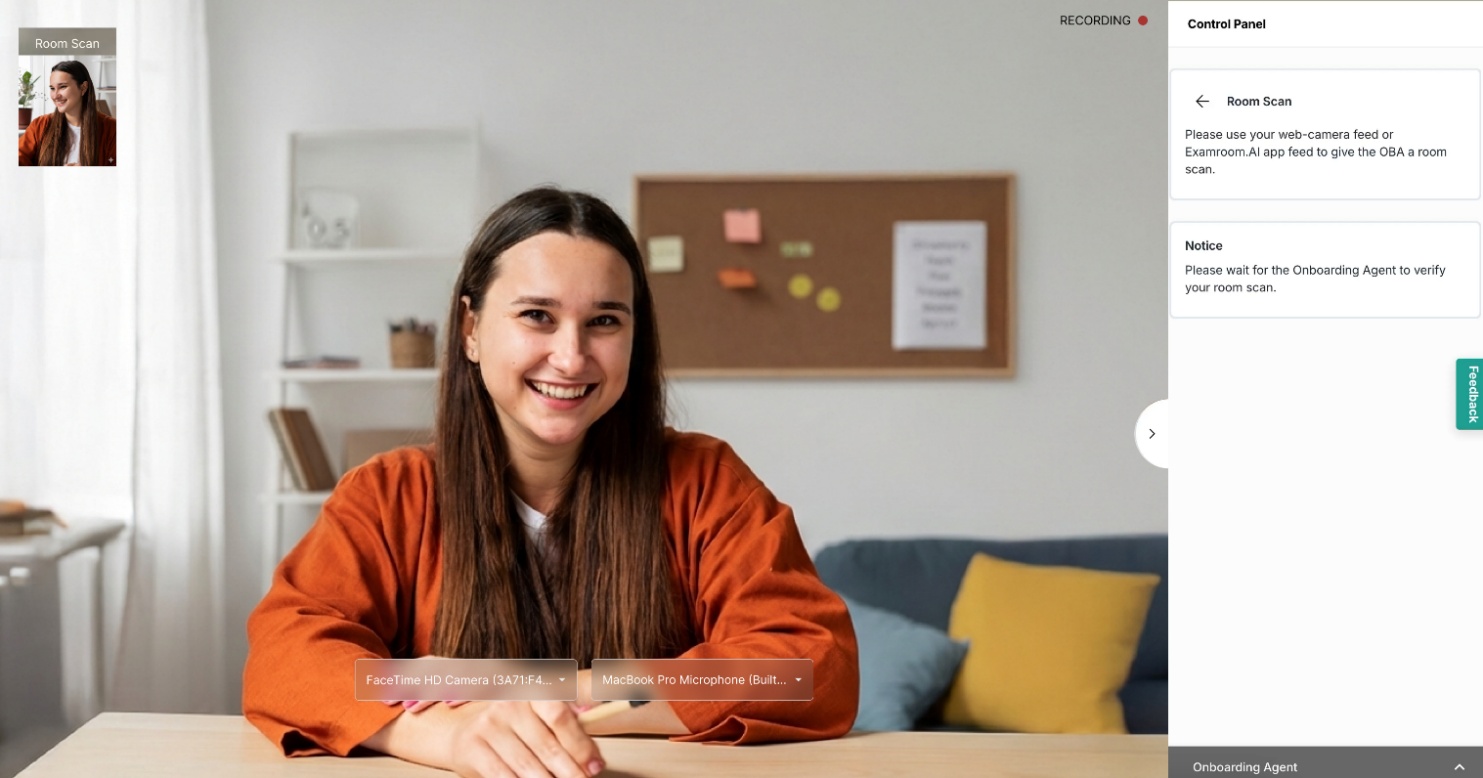
Exam Rules and Instruction
- Once the required verification process is completed by OBA, you will be transferred to a proctor.
- As the OBA initiates the transfer process, you will be provided with exam rules to go through. Click Next after reading the exam rules to go to the exam instructions.
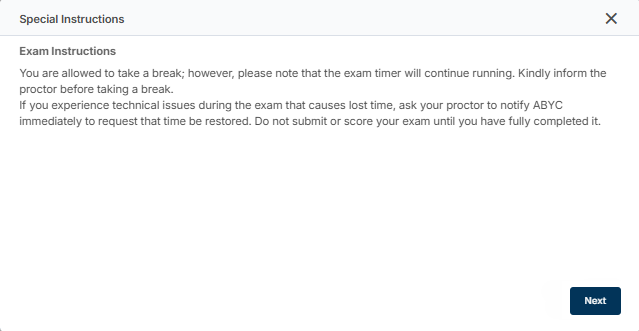
- Read through the Special Instructions and click Confirm to start your exam.
Proctoring
Proctor Session and Test Console Options
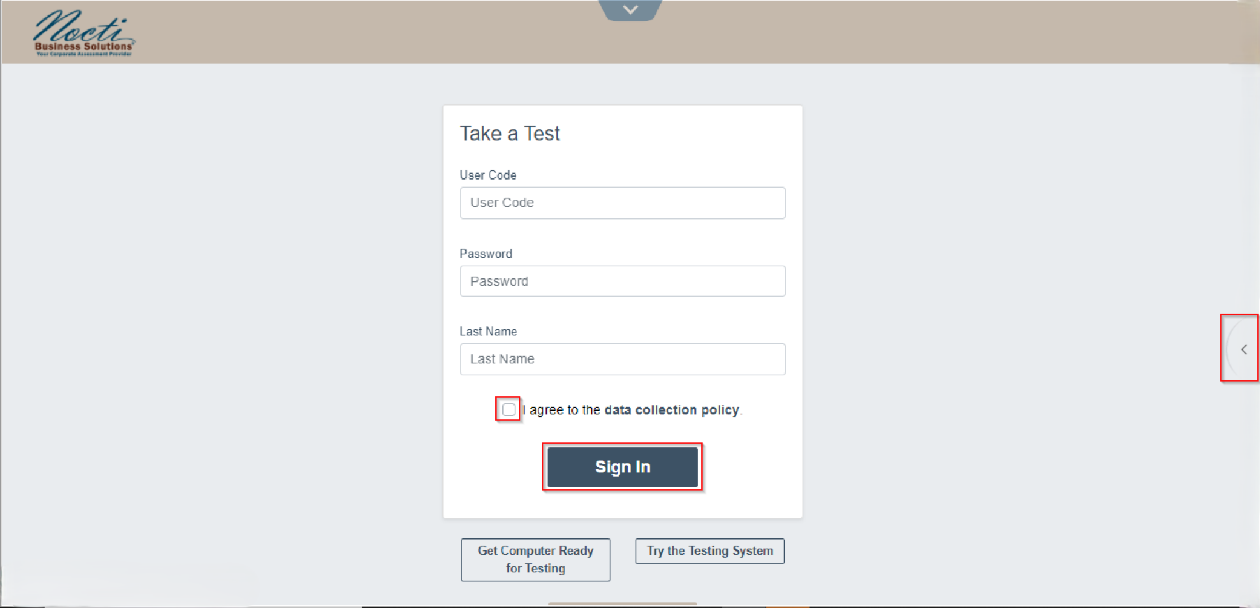
- After connecting with the proctor, the test console appears. When the test login screen shows up, wait for the proctor to share the test login details. Enter the credentials, check the box that says “I agree to the data collection policy,” and click Sign In to proceed with the exam.
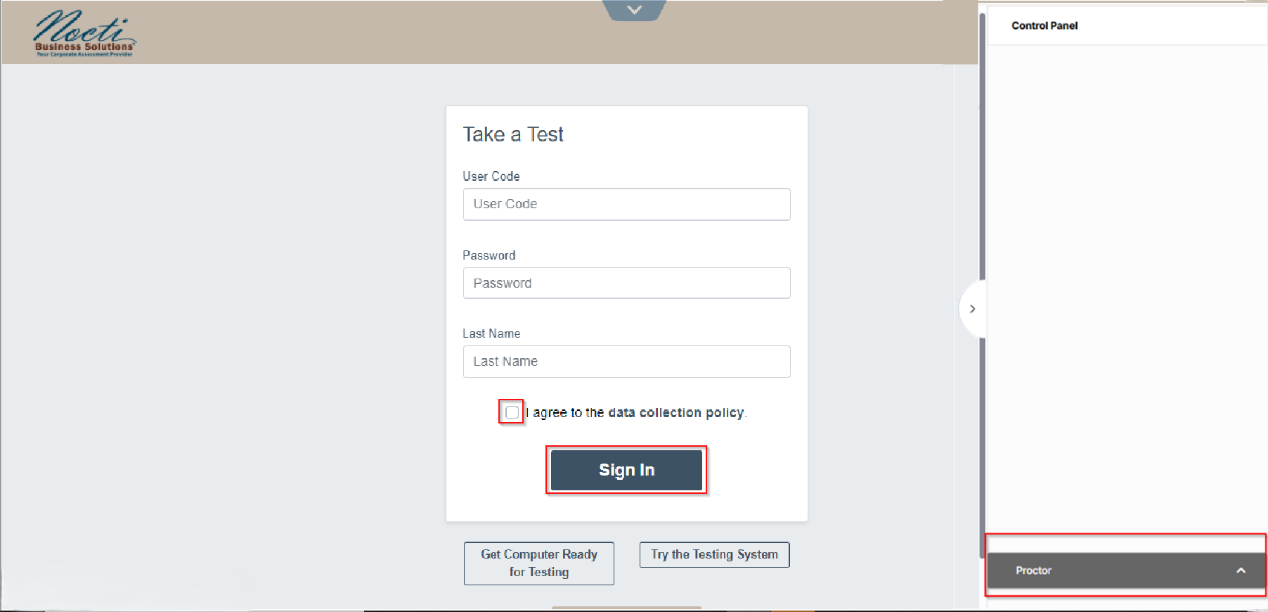
- You can contact the proctor using the chat at any point during the exam. Click the Side Arrow icon to open the control panel.
- Click on the chat bar at the bottom of the control panel to open the chat box and drop a message to the proctor if any assistance is required.
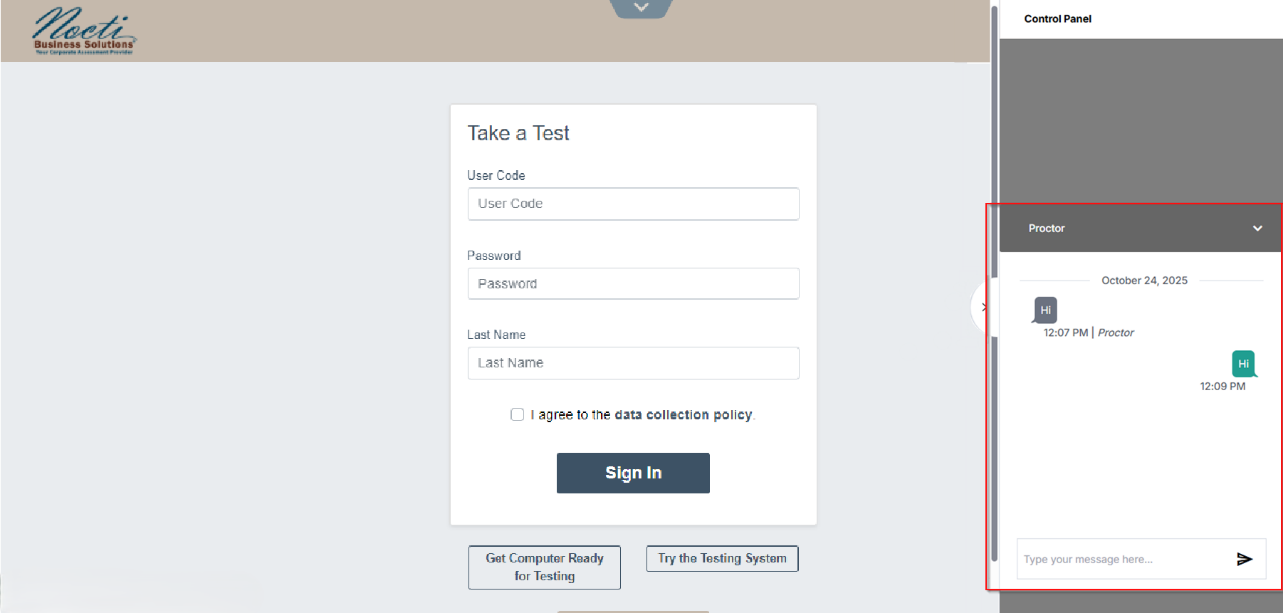
- You will also be notified if the proctor drops a message to you.
- Click to open the chat box and reply or send a message to the proctor. The chat option will be active throughout your exam session.
- You can contact the proctor using the chat at any point during the exam. Click the Side Arrow icon to open the control panel.
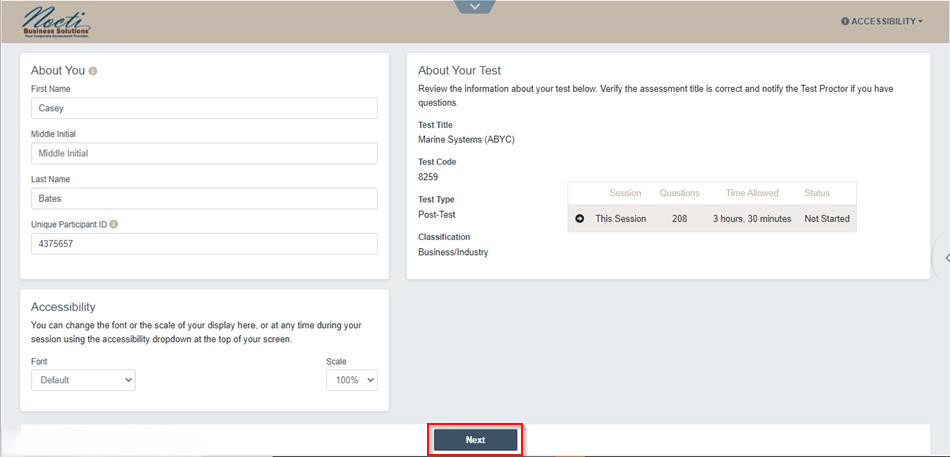
- Fill in your required details under the “About You” section, read the Exam Instructions, and click the Next button to proceed.
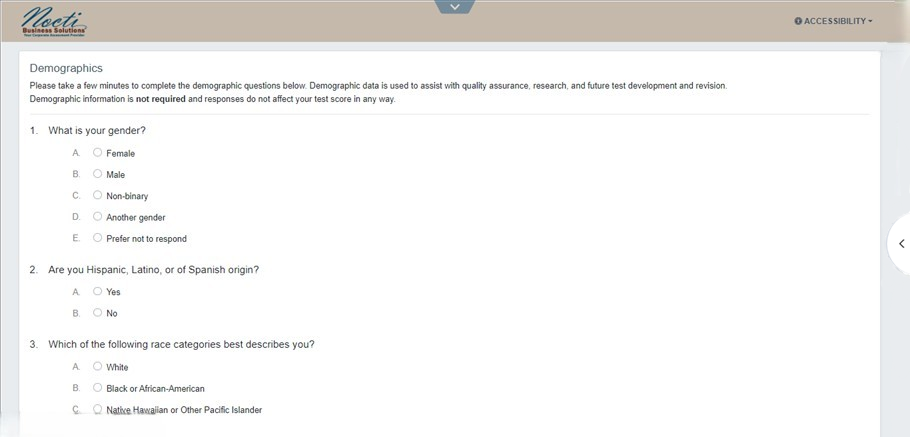
- You can enter your demographic information and click Next to continue with the pre-exam steps. Providing this information is optional.
Taking Your Exam
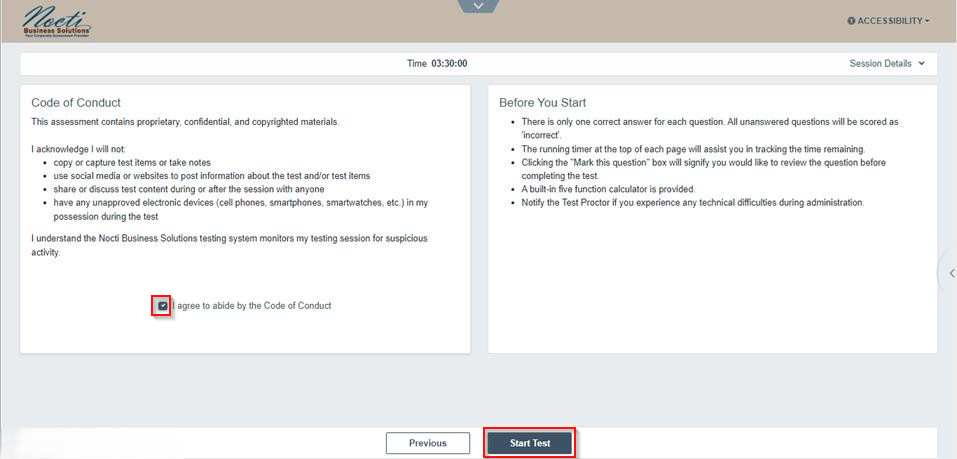
- On the final pre-exam screen, review the exam rules and code of conduct before starting. Make sure to check the box for “I agree to abide by the Code of Conduct” and then click Start Test to begin.
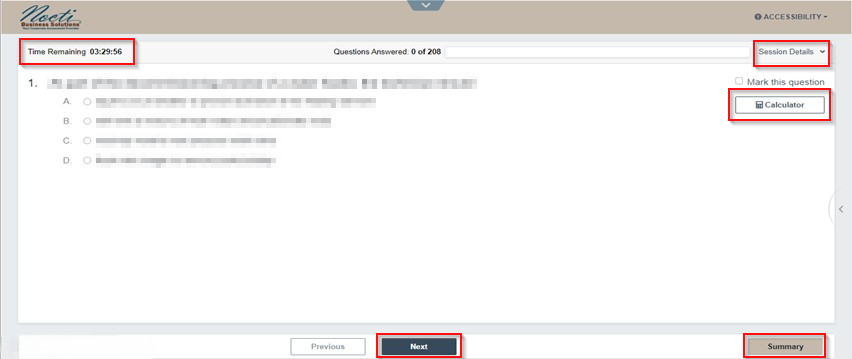
- On the testing page, you can view the header of the testing screen to check the Remaining time and Session Details or Summary, which show your exam progress, including Answered, Unanswered Questions, and Items Remaining.
- You can also use the Calculator provided on the right side of the screen during the exam, if necessary.
- Answer the questions that appear and use the question navigation buttons (Next and Previous) to move between questions.
- In summary, click on the question number to jump directly between section questions.
Ending Your Exam
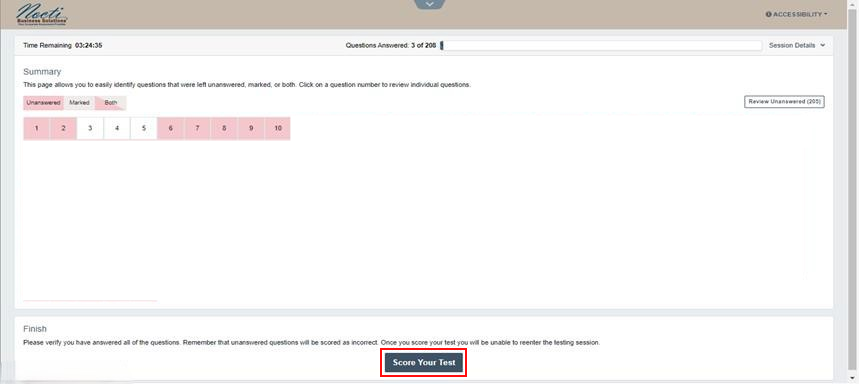
- After answering all questions, select Score Your Test to complete the test.
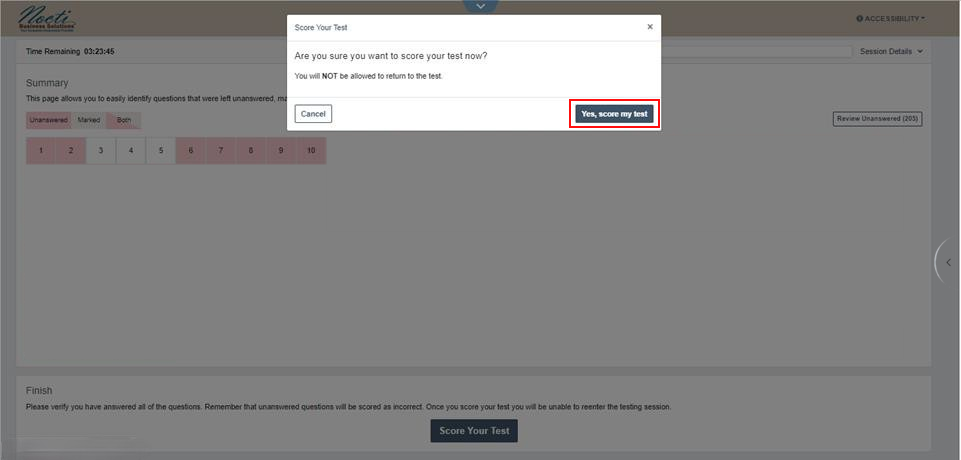
- A pop-up will appear, click “Yes, score my test” to confirm, and proceed with the completion.
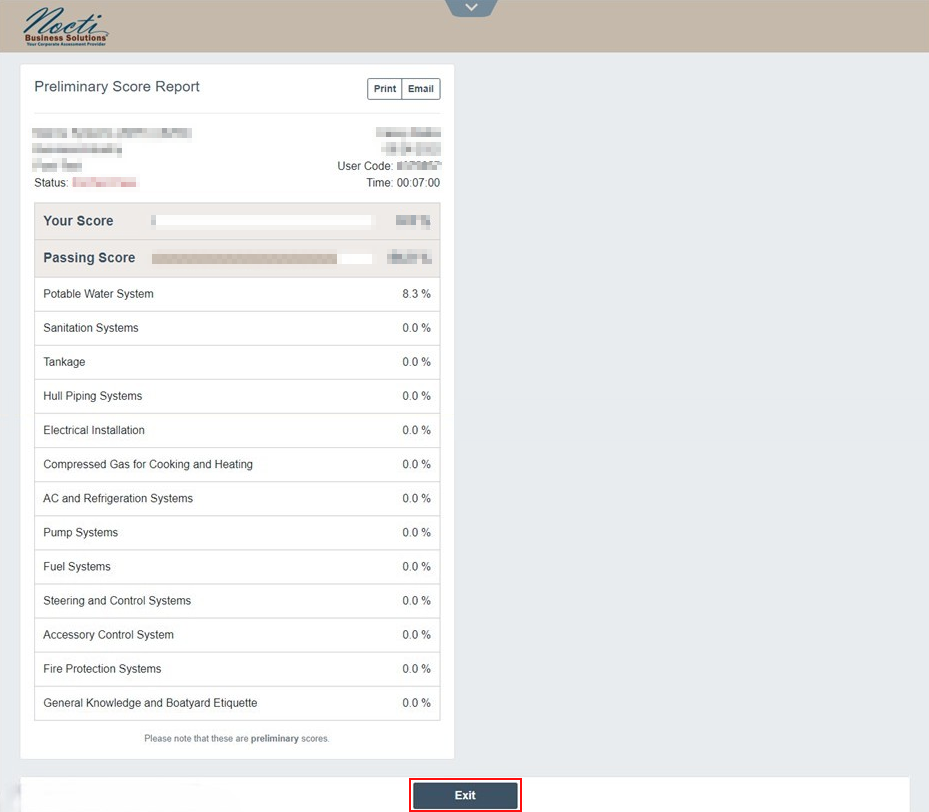
- After completing the test, you can view the Preliminary Score Report if it is available for your exam type, or you will be directed to the login page.
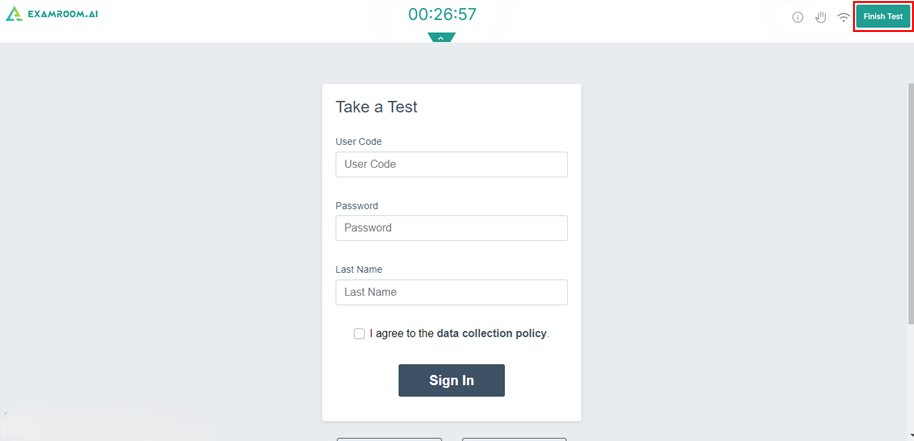
- Open the drop-down menu provided at the top,
- You can view the remaining proctoring time displayed in the center.
- Select the Information icon to view exam details.
- Select the Hand icon to raise your hand and contact the proctor during the exam.
- Check the Wi-Fi icon to view your network connectivity status.
- Click Finish Test to end the proctoring session.
Support
If you encounter any issues, please contact us at our toll-free number: +1 877-848-3926 or use the chat support available on ExamRoom.AI.